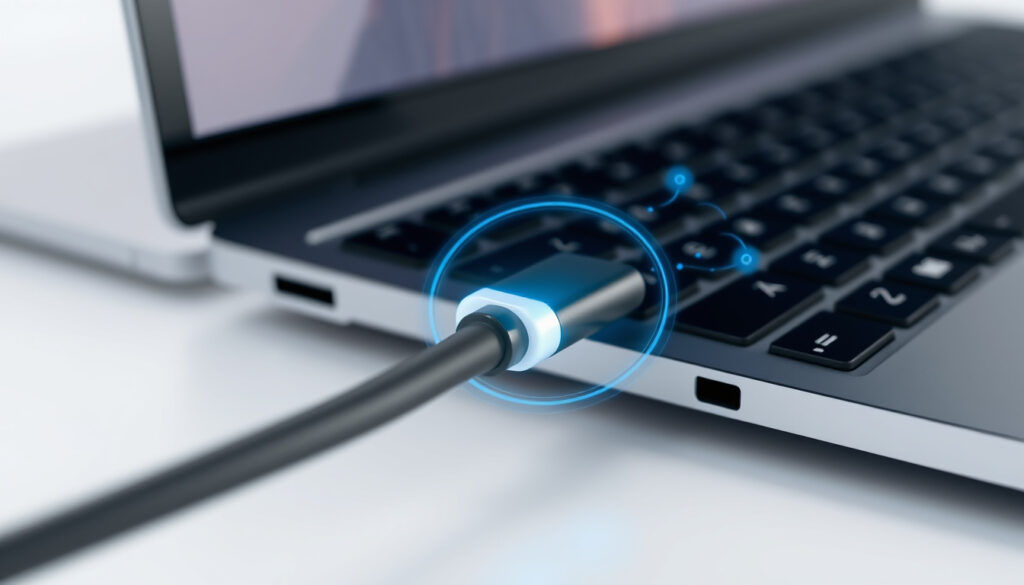
What Is a USB-C? Port, Speed, and Compatibility Explained
You’ve probably noticed the small oval port on new laptops and smartphones, but what actually is a USB-C? Introduced in 2014 (ViewSonic (display technology manufacturer)), it’s the 24-pin reversible connector that’s now standard on everything from the latest MacBooks to the iPhone 15. This guide explains the connector’s physical design, its real-world speed and power capabilities, and how to tell it apart from older USB types.
Year introduced: 2014 ·
Maximum power delivery: 100 W (USB PD 3.0) ·
Maximum data transfer rate (USB4): 40 Gbps ·
Reversible plug orientation: Yes ·
Devices shipped with USB-C (2023 estimate): Over 2 billion ·
Alternate mode support: DisplayPort, HDMI, Thunderbolt, etc.
Quick snapshot
- USB-C is a physical connector shape, not a data-speed standard (OnLogic (industrial computing hardware))
- Reversible plug orientation (Scosche (consumer electronics accessories))
- Supports up to 100W power delivery with USB PD (Anker (charging solutions))
- Whether all USB-C cables deliver full 40Gbps data (depends on protocol)
- Whether a specific USB-C port supports alternate modes (varies by device)
- 2014: USB-C released
- 2023: iPhone 15 adopts USB-C
- 2024: USB4 at 40Gbps now widespread
- USB4 v2 supports 80Gbps
- 240W charging with USB PD 3.1
- Mandatory USB-C for many device categories
Six key specs define what you can expect from a USB-C connection.
| Specification | Value |
|---|---|
| Connector type | USB Type-C (USB-C) |
| Release year | 2014 |
| Max data rate (USB4) | 40 Gbps |
| Max power (USB PD 3.0) | 100 W |
| Reversible | Yes |
| Alternate modes | DisplayPort, HDMI, Thunderbolt 3/4, etc. |
What is a USB-C?
USB-C, technically named USB Type-C, is the 24-pin reversible connector that replaces older USB-A and USB-B plugs. “USB-C is a physical connector shape, not a data-speed standard,” explains OnLogic (industrial computing hardware). That means the shape alone doesn’t tell you whether it supports USB 3.2, USB4, or Thunderbolt—those are separate protocols.
Key physical characteristics of USB-C
- Reversible: plug it in either direction (Scosche (consumer electronics accessories))
- Oval-shaped, smaller than USB-A (Scosche)
- 24 pins enabling power, data, and video
How USB-C relates to USB 3.2 and USB4
USB-C is the physical connector; USB 3.2 and USB4 are data standards that use that connector. “USB-C supports higher data rates than USB-A in common consumer implementations,” notes Scosche, with USB 3.2 Gen 2×2 pushing 20 Gbps and USB4 reaching 40 Gbps.
Why USB-C is not a protocol
The catch: a USB-C port might only carry USB 2.0 speeds if the device manufacturer cheaped out. Always check the port’s spec sheet, not just its shape.
The implication: USB-C’s versatility makes it the dominant connector, but buyers must verify specs to avoid disappointment.
How do I know if I have USB A or C?
Distinguishing USB-A from USB-C is straightforward once you know what to look for. Here are three quick steps.
Visual differences between USB-A and USB-C ports
- USB-A: rectangular, not reversible (Anker (charging solutions))
- USB-C: oval, symmetrical, smaller (Scosche)
Checking cable ends and symbols
- Examine the plug: if it’s rectangular with one side slightly beveled, it’s USB-A. If it’s flat and rounded on both ends, it’s USB-C.
- Look for a USB-C logo (two arrows pointing outward with “SS” for SuperSpeed) or a small “C” on the cable.
- Check device specifications — modern laptops and smartphones list USB-C as the port type.
Using device specifications or manual
Manufacturers such as Dell (PC manufacturer) provide manuals that clearly label each port. Look for “USB-C” or “USB Type-C” in the connectivity section.
Buying a USB-C cable when your device only has USB-A will require an adapter and may limit speed or power.
What this means: visual inspection is sufficient for basic identification, but checking device manuals confirms capabilities.
What is the difference between USB and USB-C?
Three key differences separate USB-A from USB-C: shape, speed, and power delivery.
Physical connector differences
USB-A is rectangular and non-reversible; USB-C is oval and reversible. “USB-A has long been widely used and remains common for legacy compatibility,” notes Scosche.
Speed and power capabilities
USB-A typically maxes out at 5 Gbps (USB 3.0), while USB-C with USB 3.2 Gen 2 can reach 10 Gbps (Scosche). Power delivery is the bigger leap: USB-C with USB PD delivers up to 100W (Anker), enough to charge a laptop.
Backward compatibility and adapters
Adapters allow older USB-A devices to connect to USB-C ports, but they may limit speed or power. For full performance, use cables matching the higher standard.
Three key comparisons, one pattern: USB-C outperforms USB-A in nearly every metric except legacy compatibility.
| Feature | USB-A | USB-C |
|---|---|---|
| Shape | Rectangular, non-reversible | Oval, reversible |
| Max data rate (common) | 5 Gbps (USB 3.0) | 10-40 Gbps (USB 3.2-USB4) |
| Max power (USB PD) | ~2.5W (standard USB) | 100W (USB PD 3.0) |
| Video output | No | Yes (via alternate modes) |
| Device types | Keyboards, mice, flash drives | Laptops, phones, monitors |
The trade-off: USB-C is faster and more versatile, but USB-A remains essential for older peripherals.
Can you plug a USB-C into a USB port?
Physically, a USB-C plug does not fit into a USB-A port because the shapes are different. “USB-C plug does not fit physically into a USB-A port” confirms Anker. Adapters exist, but they come with trade-offs.
Plugging a USB-C into a USB-A port
You cannot directly plug USB-C into USB-A because the connector sizes differ. A USB-C to USB-A adapter converts the shape, but may reduce data speeds or power delivery.
Using USB-C to USB-A adapters
- Some adapters support data transfer only at USB 2.0 speeds (480 Mbps)
- Others support fast charging, but only if the adapter is rated for power delivery
- For best results, use a native USB-C cable with a USB-C port on both ends
What works and what breaks with adapters
“Adapters enable connection but may limit speed or power,” warns Scosche. Always check the adapter’s specs: a USB-C to USB-A adapter marked “USB 3.0” will cap throughput at 5 Gbps.
Using a cheap adapter can cause charging slowdowns or data transfer errors, especially at high power levels.
The catch: adapters offer flexibility at the cost of performance, so native USB-C connections are preferred.
What happens if you plug a USB-C charger into a USB-C charger?
This scenario—connecting two USB-C chargers together with a USB-C cable—can be risky. While modern chargers include protections, improper routing of power can damage equipment.
Potential risks of connecting two chargers
“Plugging two chargers together can inappropriately route power,” according to ViewSonic (display technology manufacturer). If both chargers try to source power, the voltage may conflict, potentially damaging the chargers or the cable.
What device or cable damage may occur
Without proper negotiation, excess current can flow into a charger not designed to accept power, causing overheating or short circuits.
Why USB-C chargers are designed with protections
Many USB-C chargers include overload protection, short-circuit protection, and temperature monitoring. The USB PD spec mandates negotiation before high power is delivered. Even so, connecting two chargers is not a supported use case.
Always plug a charger into a device, not into another charger. If your cable is rated for 100W, connecting two 65W chargers can still create unpredictable power loops.
The pattern: USB-C’s power negotiation protects against damage, but user error can still cause issues.
Pros and cons of USB-C
Upsides
- Reversible plug eliminates frustration
- Supports fast charging up to 100W (Anker)
- Carries video and data (ViewSonic)
- Universal across laptops, phones, tablets
Downsides
- Confusing protocol compatibility (not all USB-C ports are alike)
- Requires adapters for older USB-A peripherals
- Cheap cables may not support full 40Gbps or 100W
The trade-off: USB-C’s universal design justifies the complexity for most users.
Clarity section
Confirmed facts
- USB-C is a physical connector standard (OnLogic)
- Supports up to 100W power delivery with USB PD (Anker)
- Reversible plug orientation (Scosche)
- Compatible with USB 3.2, USB4, Thunderbolt
What’s unclear
- Whether all USB-C cables deliver full 40Gbps data
- Whether a specific USB-C port supports alternate mode
The bottom line: these uncertainties highlight the need for careful product research.
Quotes from the industry
USB-C is a 24-pin reversible connector that supersedes legacy USB connectors.
— Wikipedia (USB-C article)
USB-C is the universal standard for charging and data transfer across devices.
— Belkin (USB-C accessories)
One cable type is all you need for power, video, and data.
— Dell Support (Understanding USB Type-C)
The pattern is clear: from industry leaders to accessory makers, USB-C is positioned as the single connector to replace all others. For consumers, the choice is increasingly being made by manufacturers—USB-C is no longer optional.
Den nya USB-C-kompatibla Apple Pencil är ett praktiskt exempel på hur USB-C-porten har blivit standard även för specialiserade tillbehör.
Frequently asked questions
What is USB-C used for?
USB-C is used for power delivery, data transfer, and video output. It appears on smartphones, laptops, tablets, monitors, and peripherals.
Can USB-C charge my laptop?
Yes, if the laptop supports USB Power Delivery (USB PD). Most modern laptops, including MacBooks and Dell XPS, charge via USB-C at up to 100W.
Is USB-C faster than USB-A?
In typical implementations, yes. USB-A maxes at 5 Gbps while USB-C with USB 3.2 reaches 10-20 Gbps and USB4 hits 40 Gbps (Scosche).
Do all USB-C cables support 100W charging?
No. Only cables rated for USB PD 3.0 or higher support 100W. Lower-rated cables may max at 60W or less. Always check the cable’s power rating.
Can I use a USB-C to HDMI cable for display?
Yes, if your device supports DisplayPort Alternate Mode (Alt Mode) over USB-C. Many laptops and tablets can output 4K video via USB-C to HDMI cables.
Are USB-C and Thunderbolt the same?
No. Thunderbolt 3 and 4 use the USB-C connector but offer higher speeds (up to 40 Gbps) and stricter certification. A USB-C port does not guarantee Thunderbolt compatibility.
Can I plug a USB-C charger into a USB-A device?
Only with a USB-C to USB-A adapter. However, the device may charge slower if the adapter doesn’t support fast charging protocols.
What does the USB-C logo look like?
The USB-C logo consists of two curved arrows pointing outward, often with “SS” (SuperSpeed) or “USB-C” text. It is typically embossed or printed near the port on the device or cable.
For anyone buying a new laptop or phone in 2024, the implication is clear: USB-C is here to stay. The convenience of one cable for power, data, and video outweighs the confusion of protocol versions. But users must read the fine print—check speed ratings, power ratings, and alternate mode support—or risk buying cables that can’t keep up with their devices.
More related posts
 Greenhaven Fish and Chips – Menu, Hours & Reviews
 200 NZD to PHP: Best Rates for Your Money Transfer
 Best Real Money Online Casino Guide New Zealand 2026
 NZD to FJD: Exchange Rate & Best Ways to Convert
 200 Pounds to kg – Conversion, Average Weight & BMI
 1000 NZD to PHP: Live Rate, Converter & Comparisons
 Abel Tasman Coast Track: Duration, Difficulty & Booking
 5 8 in CM – The Exact Conversion to 172.72 Centimeters